Introducing "Send Project": A Faster Way to Get a DocuSketch Project to Carriers and Other 3rd Parties

5 min read
Sending a project to an adjuster, carrier, or other 3rd party used to mean filling out a form and waiting for the DocuSketch support team to manually copy it over.
Today, we’re releasing a way to Send Projects to any 3rd party yourself, with just a few clicks and it's available to all DocuSketch customers.
What’s New
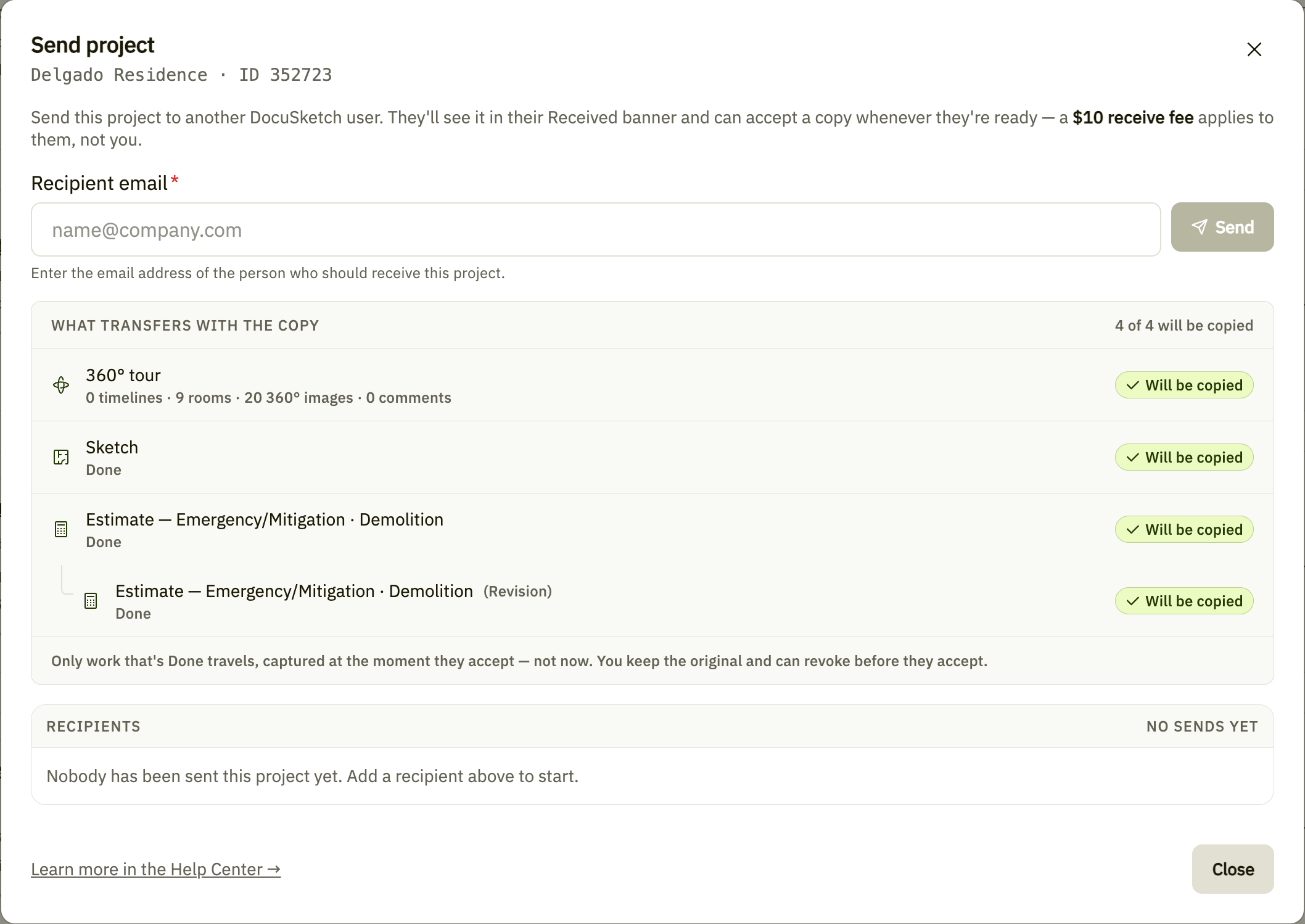
You can now send a DocuSketch project, including the 360° Tour, Sketch, and Estimate, directly from your project dashboard to any 3rd party. They accept it into their own DocuSketch account and get a full working version.
Here’s how it works:
- In your Portal dashboard, locate the project you'd like to send and select “More” then choose "Send project"
- Enter the recipient’s email address and select Send
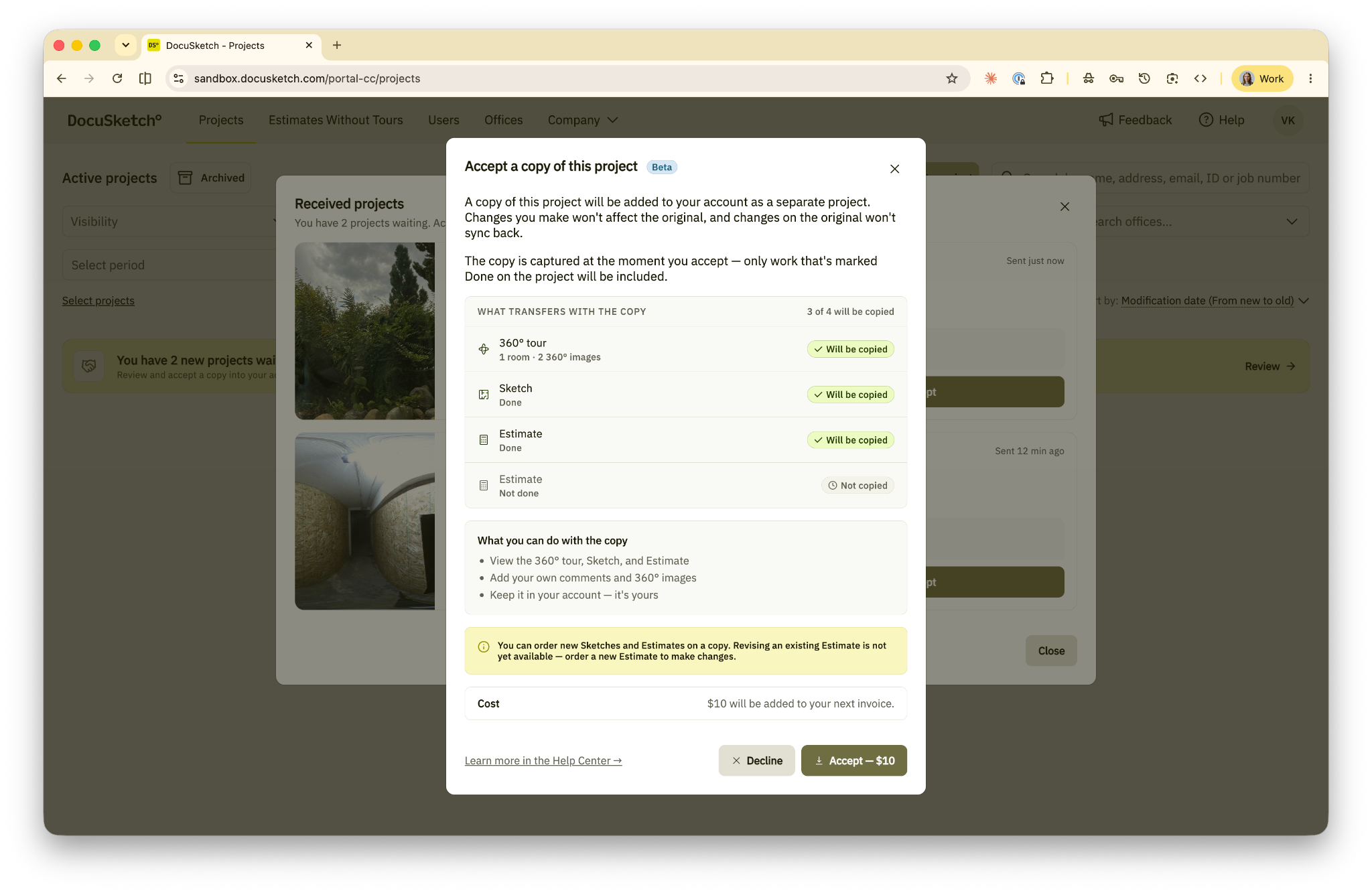
- The recipient gets a banner in their Portal (or an email, if they don’t have an account yet) and chooses Review, then Accept or Decline
- Once accepted, the project lives in their account as their own independent copy, so any changes they make don’t affect the sender’s project
For DocuSketch customers, that means:
- Easily send a carrier or other 3rd party the full project yourself, in a few clicks
- They get a record they own, in their own DocuSketch account
- They can pick it back up for a re-inspection, supplement, or dispute without coming back to you
- Your original stays untouched, because their copy is independent
- Sending is free for you
What Your 3rd Party Gets
Send Project gives the recipient the whole project in their own account, so they can:
- Review the full scope in one place, including the Tour, Sketch, and Estimate
- Keep it in their own account for their records
- Edit the project and comment on it
- Order new Sketches or Estimates
That means a carrier or other 3rd party can pick the project back up later, like for a re-inspection, supplement, or dispute, without coming back to you. The recipient pays a one-time $10 fee when they accept. The sender pays nothing.
Q&A
Will I be charged for sending a project?
No. Sending is free. The organization receiving it pays a one-time $10 fee when they accept.
If the 3rd party edits the project, does it change the original in my account?
No. They get an independent copy. After the initial sending, nothing syncs in either direction, so your original stays exactly as you sent it.
What’s included when I send a project?
The whole project: the 360° Tour plus the completed Sketch and Estimate. The recipient gets their own copy in their DocuSketch account and can edit it, comment on it, and order new Sketches or Estimates.
Who can I send a project to? Do they need a DocuSketch account?
Anyone you work with, including adjusters, carriers, and other 3rd parties. If they have a DocuSketch account, they’ll see a banner in their DocuSketch Portal. If they don’t have DocuSketch access, they’ll get an email letting them know a project is waiting and how to get access.
How do I send a project?
From your DocuSketch Portal dashboard, select “More” on the project you want to send, choose Send project, enter the recipient’s email, and select Send. Check out the help article here.
New to DocuSketch?
Discover how DocuSketch helps restoration teams document jobs faster and more accurately. Contact us to learn more.
Already using DocuSketch?
Send your next finished project to a 3rd party in a few clicks. Visit this help article.
Sending a project to an adjuster, carrier, or other 3rd party used to mean filling out a form and waiting for the DocuSketch support team to manually copy it over.
Today, we’re releasing a way to Send Projects to any 3rd party yourself, with just a few clicks and it's available to all DocuSketch customers.
What’s New
You can now send a DocuSketch project, including the 360° Tour, Sketch, and Estimate, directly from your project dashboard to any 3rd party. They accept it into their own DocuSketch account and get a full working version.
Here’s how it works:
- In your Portal dashboard, locate the project you'd like to send and select “More” then choose "Send project"
- Enter the recipient’s email address and select Send
- The recipient gets a banner in their Portal (or an email, if they don’t have an account yet) and chooses Review, then Accept or Decline
- Once accepted, the project lives in their account as their own independent copy, so any changes they make don’t affect the sender’s project
For DocuSketch customers, that means:
- Easily send a carrier or other 3rd party the full project yourself, in a few clicks
- They get a record they own, in their own DocuSketch account
- They can pick it back up for a re-inspection, supplement, or dispute without coming back to you
- Your original stays untouched, because their copy is independent
- Sending is free for you
What Your 3rd Party Gets
Send Project gives the recipient the whole project in their own account, so they can:
- Review the full scope in one place, including the Tour, Sketch, and Estimate
- Keep it in their own account for their records
- Edit the project and comment on it
- Order new Sketches or Estimates
That means a carrier or other 3rd party can pick the project back up later, like for a re-inspection, supplement, or dispute, without coming back to you. The recipient pays a one-time $10 fee when they accept. The sender pays nothing.
Q&A
Will I be charged for sending a project?
No. Sending is free. The organization receiving it pays a one-time $10 fee when they accept.
If the 3rd party edits the project, does it change the original in my account?
No. They get an independent copy. After the initial sending, nothing syncs in either direction, so your original stays exactly as you sent it.
What’s included when I send a project?
The whole project: the 360° Tour plus the completed Sketch and Estimate. The recipient gets their own copy in their DocuSketch account and can edit it, comment on it, and order new Sketches or Estimates.
Who can I send a project to? Do they need a DocuSketch account?
Anyone you work with, including adjusters, carriers, and other 3rd parties. If they have a DocuSketch account, they’ll see a banner in their DocuSketch Portal. If they don’t have DocuSketch access, they’ll get an email letting them know a project is waiting and how to get access.
How do I send a project?
From your DocuSketch Portal dashboard, select “More” on the project you want to send, choose Send project, enter the recipient’s email, and select Send. Check out the help article here.
New to DocuSketch?
Discover how DocuSketch helps restoration teams document jobs faster and more accurately. Contact us to learn more.
Already using DocuSketch?
Send your next finished project to a 3rd party in a few clicks. Visit this help article.

Related Articles